Let’s begin by easily downloading the Free App for either iphone or Android phones. You’ll need to download the app before you begin the installation process.
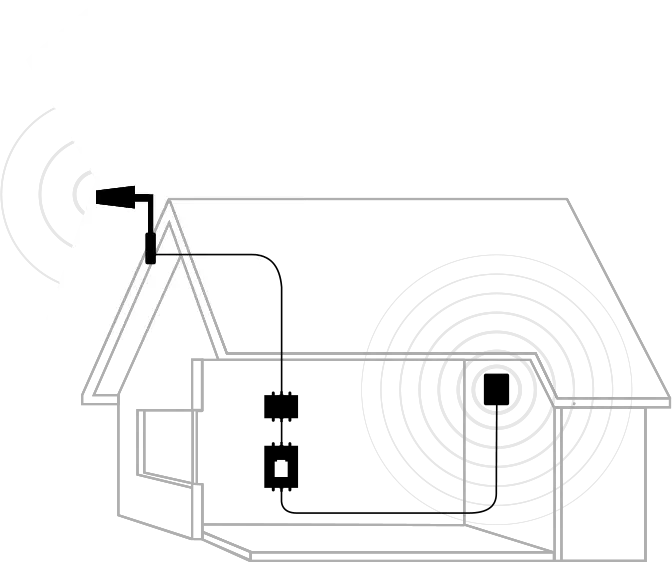
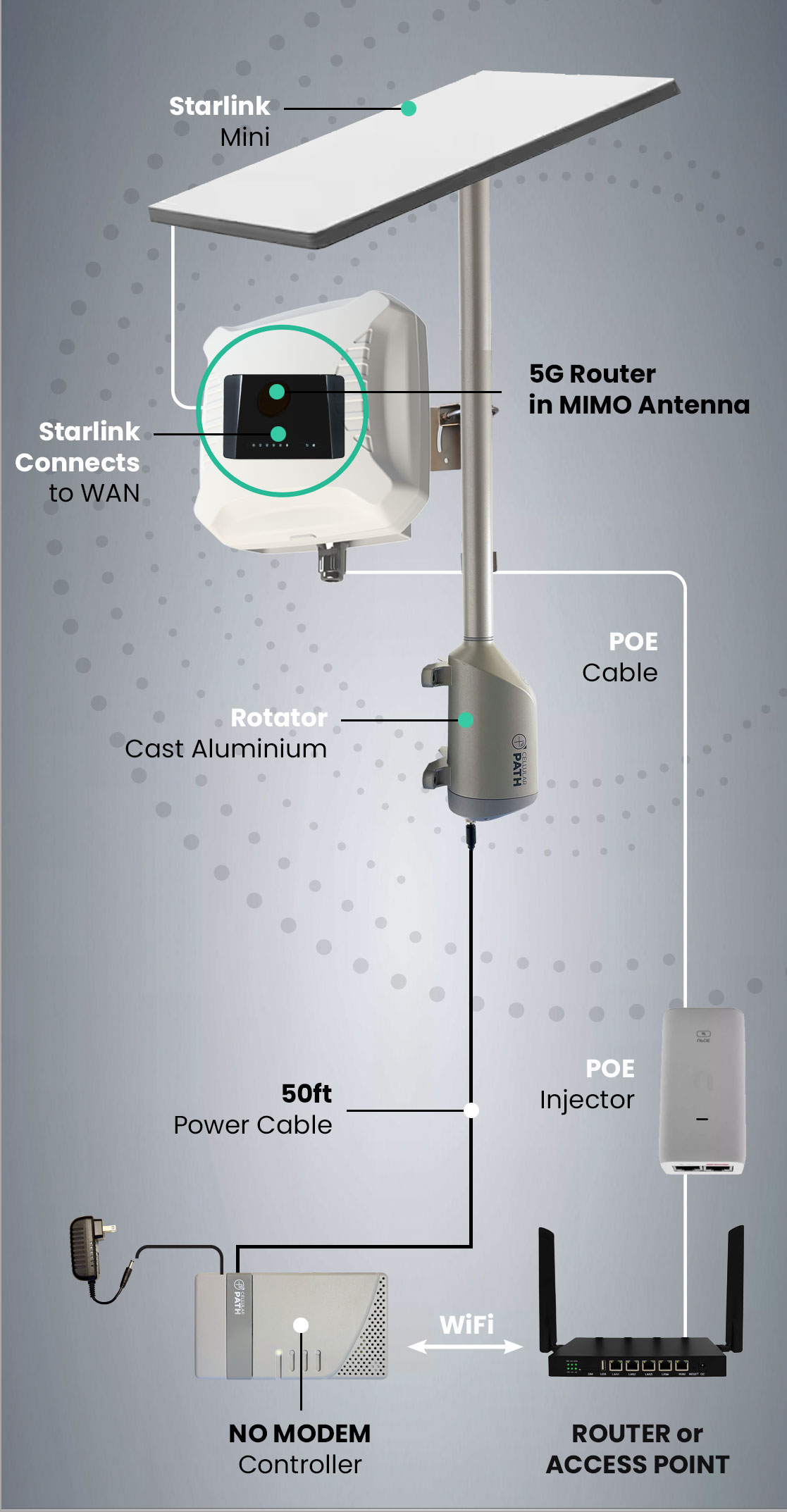
Begin by installing the Cellular Path Rotator. You’ll need a mounting pole or roofsled mount to attach the rotator (ensure 360º rotational clearance), coaxial cable plus your directional antenna (e.g. Yagi, LPDA or grid parabolic) and our power cable to connect the rotator to our internal SOCA Controller. Next run both cables into your building.
Step 3
03
install internal Hardware: SMART soca controller
We suggest placing the controller near your Signal Booster/DAS. Connect both the external coaxial cable and the power cable to the control board, then run an additional jumper cable to your signal booster/DAS hardware. You’ll need a wall socket for the 12V Adapter.
Step 4
04
Connect to the local wifi network or USE an Optional SIM
You can connect to our servers through the local wifi or via a SIM. If using wifi, connect to your wifi networks by entering your wifi name and password. Once you have completed this step, you’ll be able to monitor your system remotely, receive updates and recalibrate with ease. No Wifi Access? No problem. Use our SIM option instead.
Step 5
05
RePOSITION your Antenna
Now for the fun part! Open your app, name your device, select your carrier, choose the calibration frequency, set your alert preferences, and press “calibrate.” The outside antenna will perform a 360-degree sweep, stopping at 12 points to find the strongest signal for your carrier. This process takes about 4 minutes, after which the strongest signal setting is recorded in your app. You’ll also be able to make manual adjustments to a certain position without doing a complete rescan.